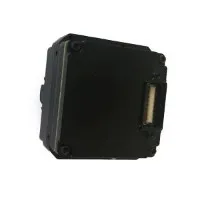

Hey there! As a supplier of Cooled IR Cameras, I often get asked about how to connect these high - tech devices to a computer. It's not as complicated as it might seem at first glance, and in this blog, I'll walk you through the whole process step by step.
First off, let's understand what a Cooled IR Camera is. These cameras are pretty awesome because they use a cooling mechanism to reduce the noise in the infrared detection process. This results in much clearer and more accurate thermal images. You can check out our Cooled Thermal Camera Module, Cooled Infrared Camera Core, and Cooled Ir Camera Module to see the different options we offer.
Step 1: Gather Your Equipment
Before you start connecting your Cooled IR Camera to a computer, you need to make sure you have all the necessary equipment. Here's a list of what you'll typically need:
- Cooled IR Camera: Obviously, you need the camera itself. Make sure it's in good working condition and fully charged if it's a battery - powered model.
- Cables: Different cameras use different types of cables for data transfer. The most common ones are USB cables, Ethernet cables, or Camera Link cables. Check your camera's manual to see which cable is required.
- Computer: You'll need a computer with the appropriate ports to connect the camera. For example, if your camera uses a USB cable, your computer should have a free USB port. Make sure your computer meets the minimum system requirements specified in the camera's manual. This usually includes a certain amount of RAM, a specific operating system version (like Windows 10 or later, or a recent version of Linux), and enough hard - drive space to store the captured images and data.
Step 2: Install the Necessary Software
Once you have all the hardware ready, it's time to install the software for your Cooled IR Camera. The software is crucial as it allows you to control the camera, adjust its settings, and view the thermal images on your computer.
- Download the Software: Visit the manufacturer's website and look for the software specifically designed for your camera model. Download the software to your computer. Make sure to get the latest version, as it may include bug fixes and new features.
- Install the Software: Run the installation file and follow the on - screen instructions. This usually involves accepting the license agreement, choosing the installation location, and waiting for the software to be installed. Once the installation is complete, restart your computer to ensure that all the changes take effect.
Step 3: Connect the Camera to the Computer
Now comes the physical connection part.
- Power Off the Camera and Computer: Before making any connections, it's a good idea to turn off both the camera and the computer. This helps prevent any electrical surges that could damage the equipment.
- Connect the Cable: Take the appropriate cable and connect one end to the camera and the other end to the corresponding port on your computer. If you're using a USB cable, just plug it in. For Ethernet or Camera Link cables, make sure the connections are secure.
- Power On the Camera and Computer: After making the connections, power on the camera first and then the computer. As the computer boots up, it should detect the new device. If it doesn't, you may need to go to the Device Manager (on Windows) or the System Preferences (on Mac) and manually install the drivers for the camera.
Step 4: Configure the Camera Settings
Once the camera is connected and the software is installed, you can start configuring the camera settings.
- Open the Camera Software: Launch the software you installed earlier. You should see a user interface with various options and controls.
- Adjust the Basic Settings: Start by adjusting the basic settings such as the image resolution, frame rate, and temperature range. These settings depend on your specific application. For example, if you're using the camera for industrial inspections, you may need a higher resolution and a wider temperature range.
- Calibrate the Camera: Some cameras require calibration to ensure accurate temperature measurements. Follow the instructions in the software to perform the calibration process. This usually involves exposing the camera to a known temperature source and adjusting the settings accordingly.
Step 5: Test the Connection
After configuring the settings, it's time to test the connection to make sure everything is working properly.
- Capture an Image: Use the software to capture a thermal image. If the camera is working correctly, you should see a clear thermal image on your computer screen.
- Check the Image Quality: Look at the image closely and check for any artifacts, noise, or other issues. If the image quality is poor, you may need to adjust the settings again or check the connections.
- Verify the Temperature Readings: If your camera is capable of measuring temperatures, use a known temperature source to verify the accuracy of the temperature readings. Compare the readings on the camera with the actual temperature of the source.
Troubleshooting Tips
Even if you follow all the steps correctly, you may still encounter some issues. Here are some common problems and their solutions:
- Camera Not Detected: If your computer doesn't detect the camera, check the cable connections to make sure they're secure. Try using a different cable or port. You may also need to reinstall the camera drivers.
- Poor Image Quality: This could be due to incorrect settings, a dirty lens, or a problem with the camera itself. Clean the lens carefully using a lens cleaning kit. Adjust the settings such as the gain, offset, and focus to improve the image quality.
- Temperature Measurement Inaccuracies: If the temperature readings are inaccurate, make sure the camera is properly calibrated. Check the ambient temperature and make sure it's within the operating range specified in the camera's manual.
Conclusion
Connecting a Cooled IR Camera to a computer is a relatively straightforward process if you follow the steps outlined above. By gathering the right equipment, installing the necessary software, making the physical connections, configuring the settings, and testing the connection, you'll be able to use your camera to capture high - quality thermal images and perform accurate temperature measurements.


If you're interested in purchasing a Cooled IR Camera or have any questions about the connection process, don't hesitate to reach out for a procurement discussion. We're here to help you find the best solution for your needs.
References
- Camera Manufacturer's Manual
- Technical Documentation from the Software Provider